Publish packagesPublish conda packages in the browser, with Pixi or Rattler-Build, or from CI.
You can publish a built conda package in the browser, from a local terminal, or from CI. You need the Owner or Contributor role on the target channel.
Package files must use the .conda or .tar.bz2 format. Upload commands use the canonical channel reference: <namespace> for a primary channel or <namespace>/<channel> for a non-primary channel. The @ appears only in website routes.
Prerequisites
This guide starts with a built conda artifact: a .conda or .tar.bz2 file, usually inside an output/<subdirectory>/ folder. If you do not have one yet, follow the Rattler-Build guide to create and test a recipe.
The browser method needs no uploader installation. For terminal methods, install Pixi or install Rattler-Build using the options in its guide.
Before publishing
Uploading stores an artifact; it does not prove that the recipe or package works. Before publishing:
pin and verify the package source and review its recipe dependencies;
run the recipe’s build and test steps;
install the artifact in a clean environment;
build and test every platform or architecture you intend to support; and
keep the recipe, source hash, build logs, and artifact digest.
One locally built artifact does not make a package cross-platform. After publishing, inspect the package page and verify the expected filenames, builds, and platform subdirectories.
Choose a publishing method
Method | Best for | Credential |
|---|---|---|
Browser upload | An occasional package up to 1 GiB | Signed-in browser session |
Pixi | Local scripts and one or more built packages | Interactive OAuth or an existing scoped key |
Rattler-Build | Local build-and-publish workflows | Shared Pixi/Rattler credential |
Repository Access | CI/CD and cloud workloads | Short-lived OIDC identity |
For local work, prefer interactive OAuth. For CI, prefer Repository Access.
Upload in the browser
Open the channel and select Settings > Upload Package.
Confirm that you are in the intended channel.
Drag
.condaor.tar.bz2files into the upload area, or select them.Keep the page open while the files upload.
Confirm that every file reports Successfully uploaded, then inspect the package on the channel page.
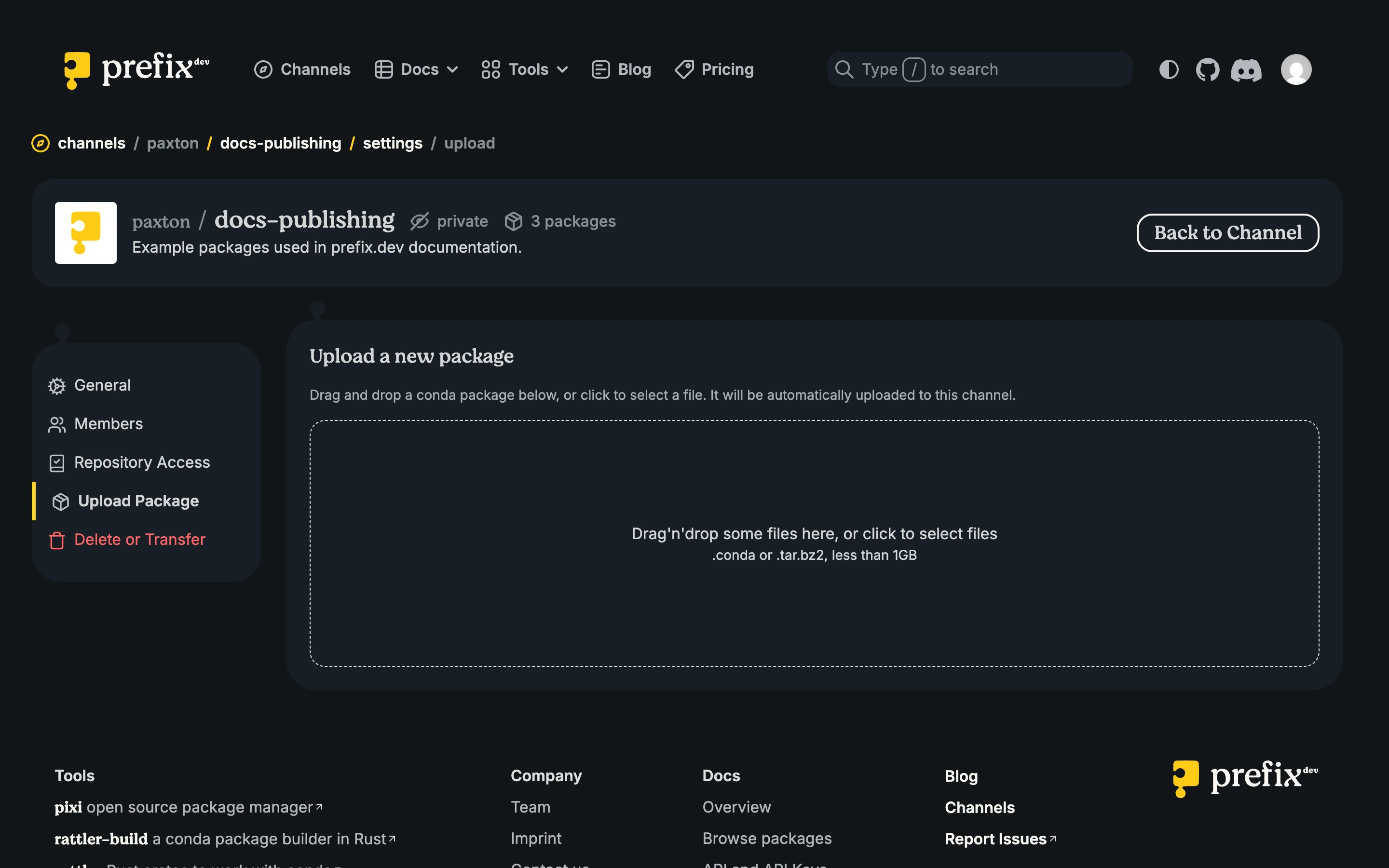
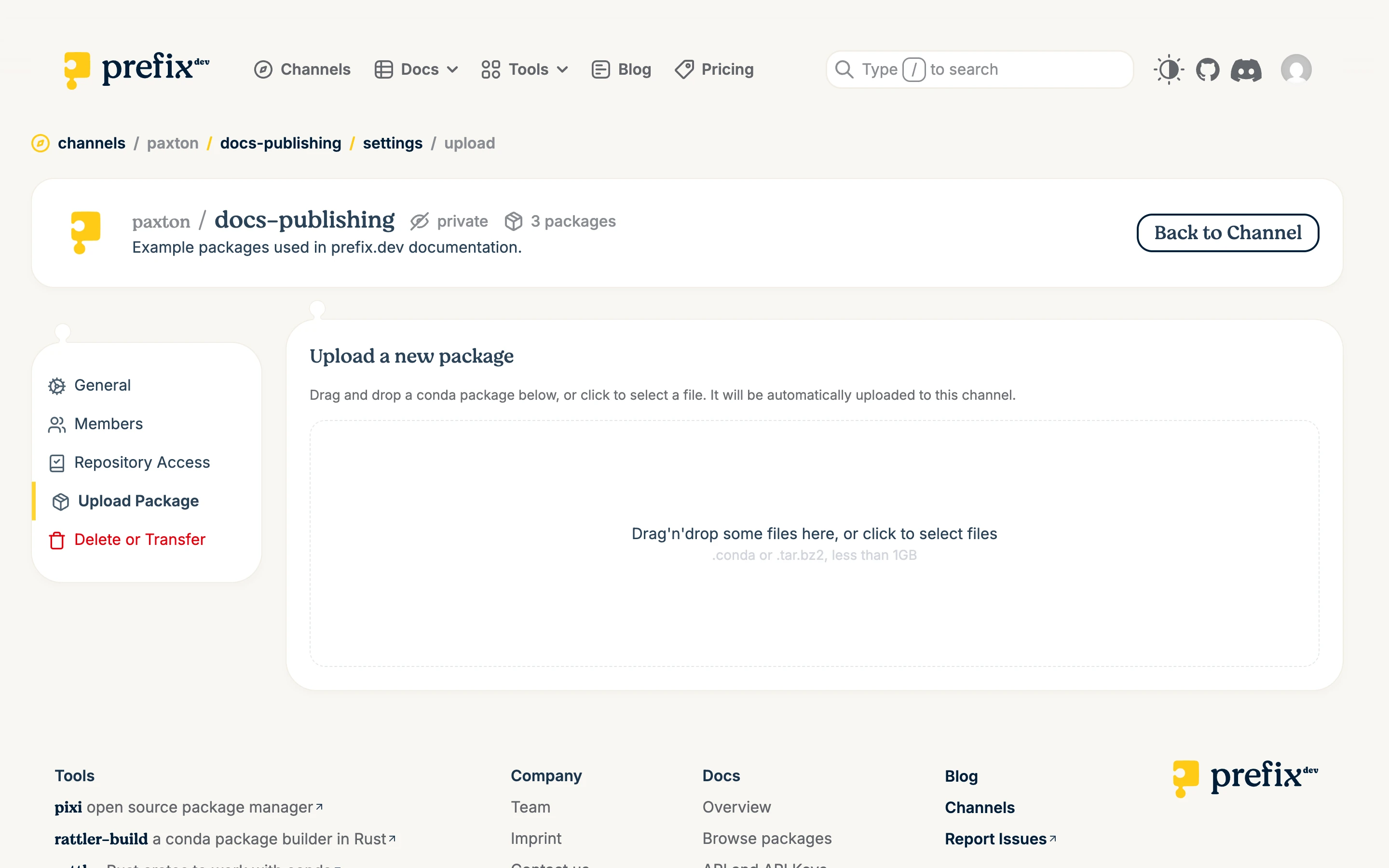
The browser accepts files up to 1 GiB. CLI and API uploads use the package-size and storage limits for the channel’s plan, subject to the backend’s 5 GiB absolute ceiling.
Publish with Pixi
Authenticate through the browser:
pixi auth login prefix.dev
Upload one or more built packages:
pixi upload prefix --channel <canonical-channel-reference> <package-file> [<package-file> ...]
For example:
pixi upload prefix --channel acme/research ./output/linux-64/example-1.0.0-0.conda
The prefix subcommand is required. For repeatable scripts, --skip-existing treats an existing-filename conflict as success without replacing the remote artifact. It does not verify that a locally rebuilt file has identical bytes, so omit the flag when a mismatch must fail the job.
Publish with Rattler-Build
Rattler-Build can reuse a credential created by pixi auth login prefix.dev, or start its own OAuth flow:
rattler-build auth login prefix.dev --oauth
Upload built packages:
rattler-build upload prefix --channel <canonical-channel-reference> <package-file> [<package-file> ...]
Correct a published package
Conda package filenames should be immutable. To correct a package:
Increase the recipe build number so the corrected artifact gets a new filename.
Build and test the replacement.
Publish it.
Yank the bad variant with a reason that points users to the replacement.
Danger:
--forcereplaces different bytes under an existing filename. This can leave lockfiles, caches, proxies, and recorded hashes referring to different content. Use it only for exceptional recovery, and only with Read/write/delete access.
Publish with an existing API key
When OAuth is unavailable, inject a scoped key through the environment used by the uploader:
export PREFIX_API_KEY=<api-key>
pixi upload prefix --channel <canonical-channel-reference> <package-file>
The same variable works with rattler-build upload prefix. Supply the value through a local secret manager or CI secret. Do not commit it or expose it in logs or shell history.
Troubleshoot publishing
Authentication fails: Repeat interactive login. For a key, check its status, expiry, channel, and mode.
The channel cannot be found: Use the canonical reference without
@.The package already exists: Publish a new build rather than replacing the filename.
--skip-existingcan make repeat uploads idempotent, but it also treats a different-byte file with the same filename as success without uploading it.The package is too large or storage is exhausted: Check the plan and usage settings that apply to the channel. Browser uploads stop at 1 GiB; no upload can exceed 5 GiB.